


Universal TV Remote Control
0.00.00 Reviews
App Specs
- Version
- 1.9
- Updated On
- License
- Free
- Downloads
- 100,000+
- Developer
- eXD Technology
- Categories
- House & Home
- Platform
- Android
Screenshots
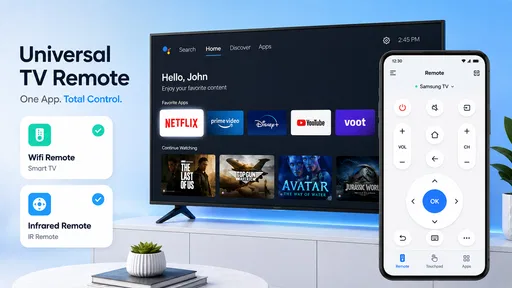
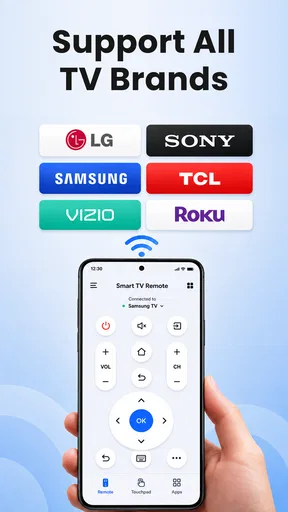
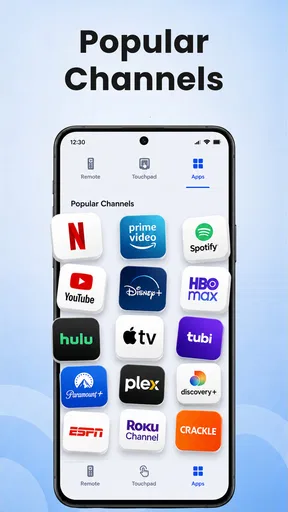
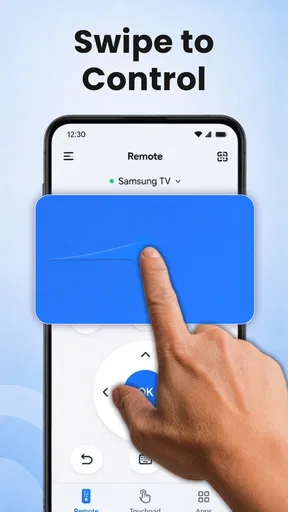
 Analysis by AppCompare
I like the idea behind Universal TV Remote Control: turn the phone you already keep nearby into a backup way to manage the TV, rather than interrupting a quiet evening to hunt for a missing remote. That convenience is appealing, but a remote app is only as useful as its connection to your particular setup. I’d treat this as a practical option to try, not a guaranteed replacement for every television or household device.
It sits in the House & Home category, where usefulness comes down to whether a tool makes routine tasks around the home simpler. eXD Technology’s app is free to install, has an Everyone age rating, and is on version 1.9. It has passed 100K installs, while its average rating is 0.0, so there isn’t a meaningful user-rating signal to lean on. Optional in-app purchases range from $2.99 to $19.99 per item; I’d check what an item offers before paying rather than assume the basic remote experience covers every need.
Where a phone remote earns its place
The strongest reason to keep a universal remote app around is not that it makes watching television feel radically different. It is that a phone is often already within reach. If the regular remote has slipped between sofa cushions, or someone has carried it into another room, having another control route can save a small but irritating search. That is especially handy in a shared living room, where the remote tends to migrate just when somebody wants to pause or change the volume.
There is another useful moment: entering text. A television’s on-screen keyboard can make a simple search feel slow when each letter requires several directional-button presses. A phone keyboard can be a more comfortable way to type, if the app connects to the TV and supports that interaction in your setup. I’d still keep the physical remote nearby for anything the app doesn’t handle, but for a one-off search, the phone can be the less frustrating tool.
The connection is the real test
“Universal” sounds reassuring, but it should not be read as a promise that every TV, streaming box, and sound system will work in every home. Compatibility depends on the devices and how they connect, so I would make testing the actual television the first step. Try the basic controls before relying on the app for a movie night: check whether you can navigate menus, adjust volume, and perform the actions you use most. If one essential control is missing or unreliable, the app may be a useful backup rather than a full replacement.
A sensible setup habit is to test the app while the original remote is still within reach. That gives you an easy fallback if pairing or navigation takes longer than expected, and it lets you compare the phone controls with the buttons you already know. I would also avoid building a household routine around the app until it has behaved consistently with your own equipment. A remote that works for one television in one room does not automatically solve control for every device in the home.
Who should try it—and who may not need it
This is best suited to someone who wants a convenient extra control option, especially if they often use their phone while watching TV or dislike typing searches with directional keys. It may also suit a household that wants to experiment with managing compatible entertainment devices from one place. The useful question is not whether a phone can replace a remote in theory, but whether it handles the particular buttons and devices your family actually uses.
Worth Reading Before You Choose

EA SPORTS FC Mobile 26 Is a Bigger Football Game, but It Takes Time

Flipboard Shows What News Apps Must Do Beyond the Feed

Switching to Android Auto Means Rethinking Your Driving Routine

Google Calendar Makes a Crowded Week Easier to Manage

Ludo King Makes the Most of the Minutes Between Plans

Baby Panda World Brings Quick Play to Modern Phones, but Its Game Library Feels Busy
If you depend on a dedicated remote for quick, reliable access, or your setup includes equipment that the app does not control, sticking with the original remote is the safer choice. The same goes for anyone who does not want to troubleshoot a connection or check which features are available before paying for an optional item. A manufacturer’s own remote app can be a better alternative when you only need to control one brand’s television; a physical universal remote may be preferable when you want a single, tactile controller without reaching for a phone.
Getting Started with Universal TV Remote Control
So, what's the deal with this app? First things first, setting it up is a breeze. You just download it from the app store, install it, and follow the simple on-screen instructions. The app is compatible with both Android and iOS devices, making it super versatile. It's like having a universal remote right in your pocket.
Once you've got it set up, connecting to your TV is straightforward. The app supports a wide range of TV brands, so you'll likely find your model listed. I tested it with my Samsung TV, and it worked like a charm. Just a quick scan, and voila! I was in control of the TV.
Features That Stand Out
What really impressed me were the features packed into the Universal TV Remote Control. It doesn't just replace your regular remote; it enhances it. There's a touchpad feature that allows for easy navigation – think swiping through Netflix with just a flick of your thumb. It's quite intuitive and way more fun than pressing buttons.
The app also includes a keyboard, which is a lifesaver when you need to enter text, like searching for a movie or typing in Wi-Fi passwords. Gone are the days of awkwardly pressing arrow keys to select each letter. It’s those little conveniences that make a big difference.
Making Life Simpler
One of the aspects I truly appreciated is the app's ability to control multiple devices. If you're anything like me, juggling between different remotes for the TV, sound system, and streaming devices can be a hassle. With this app, I could easily switch between controlling my TV and my Apple TV without missing a beat.
Another neat feature is the customization options. You can create your own remote layout and choose which buttons you want to include. It's all about making the app work for you, not the other way around. Plus, the app's interface is sleek and user-friendly, which is always a plus in my book.
Making a reliable everyday routine
A realistic way to judge a remote app is to use it for one complete, ordinary task rather than tapping a few buttons and calling the setup finished. For example, start from the television’s home screen, open the service you normally watch, search for a title, adjust the sound, and return to the home screen. That short run-through exposes the controls you actually depend on. If the touchpad makes browsing easier but the app lacks a button you regularly need, you’ll know before the physical remote has been put away.
I’d also think about who else uses the television. A phone-based controller is convenient when one person has their phone at hand, but it can be less practical when several people want to make quick changes or when the phone owner has left the room. In a shared home, keeping the original remote in its usual spot avoids turning a handy alternative into a new point of friction. The app works best as an extra route to control, not as a household rule everyone must follow.
Small workflow choices that matter
Customizing the layout can be more useful than trying to reproduce every button on a traditional remote. I’d put the actions I use most often where my thumb can reach them, then leave rarely used controls out of the way if the app allows that. The goal is to reduce fumbling during ordinary viewing, not to create a perfect digital copy. A sparse layout may be easier for a guest or family member to understand than a screen crowded with controls.
For text entry, I’d save the phone keyboard for searches and other occasional typing, while using whichever navigation method feels steadier for browsing. A touch surface can be quick for moving around, but directional buttons often provide more deliberate control when selecting a small on-screen item. That trade-off is easy to miss if you judge the app only by its most novel feature. The best approach may be to switch methods depending on the task rather than insisting on one interaction style.
Choosing between this and familiar alternatives
Compared with the remote supplied with a television, a phone app offers a keyboard and a screen that can be customized, but it asks you to keep the phone available and use a connection that works with the TV. The original remote has the advantage of being a dedicated tool: it is ready to grab and does not compete with messages, calls, or other phone use. I’d keep it for quick volume changes or situations where a phone is inconvenient, even if the app becomes my preference for searching.
A brand-specific control app may be the simpler choice if you only need to operate one manufacturer’s television and want a straightforward match for it. A physical universal remote makes more sense if your priority is one tactile device for a multi-device setup. This app’s appeal is the phone-first approach and the possibility of bringing controls together; its trade-off is that compatibility and the exact usefulness of its controls need to be judged against your equipment, not the word “universal.”
What to check before depending on it
Before settling in, I’d confirm that the TV is discoverable from the app and that the controls work from the place where I usually sit. Then I’d try the less obvious parts of my routine, such as changing inputs or navigating a streaming screen, instead of checking only power and volume. Those tests answer the practical question of whether this can be a daily remote or merely an occasional backup. If it behaves differently from room to room or across devices, keeping the original controls accessible is the sensible choice.
It is also worth deciding whether the free experience is enough for your needs before considering an in-app purchase. The app is free, but optional items are priced from $2.99 to $19.99. I would first identify a specific missing capability that matters to me, then check whether a paid item addresses it. Paying just because the app offers an upgrade would be hard to justify if the basic controls already cover the way I watch TV.
Making Life Simpler
One of the aspects I truly appreciated is the app's ability to control multiple devices. If you're anything like me, juggling between different remotes for the TV, sound system, and streaming devices can be a hassle. With this app, I could easily switch between controlling my TV and my Apple TV without missing a beat.
Another neat feature is the customization options. You can create your own remote layout and choose which buttons you want to include. It's all about making the app work for you, not the other way around. Plus, the app's interface is sleek and user-friendly, which is always a plus in my book.
Wrapping It Up
After spending some quality time with the Universal TV Remote Control, I can honestly say it's a must-have for anyone looking to simplify their home entertainment setup. It's convenient, easy to use, and packed with features that genuinely enhance the TV-watching experience. Whether you're a tech-savvy individual or someone who just wants an easier way to manage their devices, this app has got you covered.
So next time you find yourself in a panic, searching for the elusive TV remote, remember that your phone can now save the day. Give it a try, and you might just wonder how you ever lived without it.
Pros
- Easy setup and user-friendly interface.
- Compatible with a wide range of TV brands.
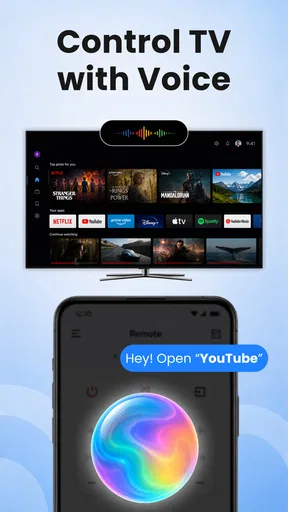
- Includes voice control for convenience.
- Customizable remote layout options.
- Quick response time with minimal lag.
Cons
- Contains ads that can be distracting.
- Limited functionality with some older TVs.
- In-app purchases required for premium features.
- Requires stable Wi-Fi connection to function.
- Not compatible with all smart home devices.
FAQs for Universal TV Remote Control
How does the Universal TV Remote Control app connect to my TV?
The Universal TV Remote Control app connects to your TV via infrared (IR) or Wi-Fi, depending on your device's compatibility. Most smartphones with an IR blaster can use this feature directly. For devices without an IR blaster, the app can connect through Wi-Fi if your TV supports Wi-Fi control.
Is the Universal TV Remote Control app compatible with all TV brands?
The app is designed to be compatible with a wide range of TV brands, including popular ones like Samsung, LG, Sony, and Panasonic. However, compatibility may vary depending on the model and year of your TV. It's always a good idea to check your TV's compatibility before installing the app.
Do I need to purchase any additional hardware to use the app?
For phones equipped with an IR blaster, no additional hardware is needed. However, if your phone lacks an IR blaster, you might need an external IR device or ensure that your TV and phone are on the same Wi-Fi network for the app to function properly.
What features does the Universal TV Remote Control app offer?
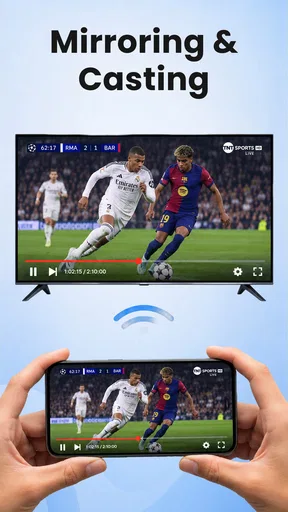
The app offers a variety of features, including standard remote control functions like changing channels, adjusting volume, and accessing menus. Advanced features may include voice control, customizable remote layouts, and integration with smart home devices, depending on the app's version and updates.
Is there a cost associated with using the Universal TV Remote Control app?
The app is generally free to download, but it may offer in-app purchases or ads. Some features might be locked behind a paywall, requiring a one-time purchase or subscription for full access. Always review the app details in the store for specific pricing information.


